Productivity
4 ways to delegate inbox access to your virtual executive assistant
Feb 7, 2025
5 min read


Most companies use email as their primary tool for asynchronous communication, which means that the volume of emails you get tends to become higher and higher as your company grows – especially for executives. Some of the emails you receive are truly important, but many are noise. That’s why managing your inbox is so important: this simple task quickly becomes really time-consuming, and time is the one resource you can’t afford to lose as an executive. Delegating your inbox to a virtual executive assistant saves you valuable hours every day and ensures faster response times.
You’ll no longer be a bottleneck for your team, allowing communication to flow smoothly, deals to move through the pipeline faster, and opportunities to be seized without delay.

Table of contents
- What are the different ways to delegate inbox access?
- How do you decide which inbox access method is right for you?
- What are the best practices for delegating inbox management?
- How can you start delegating your inbox today?
How do you delegate inbox access to your virtual executive assistant?
There are four main methods executives can use to share their inbox with a virtual executive assistant:
- Grant access to your account
- Forward your emails
- Create a second inbox inbox
- Manually forward emails
Let’s look at how they work.
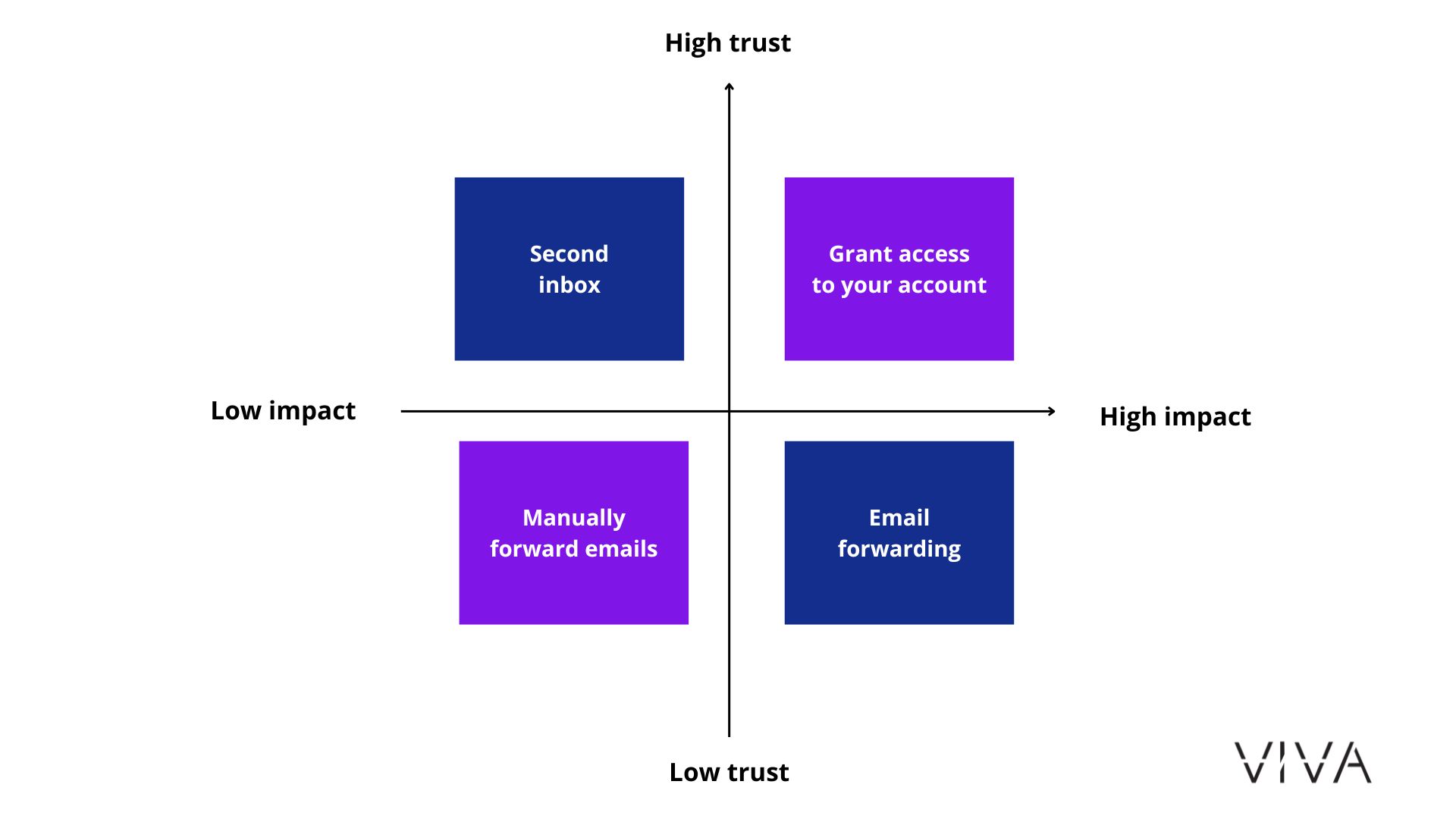
*We don’t suggest sharing your login credentials directly. This is not a suitable approach from a security standpoint.
Grant access to your account to your virtual executive assistant
If managing your email has become a burden and you want your assistant to take care of it almost entirely, granting access to your account is the way to go. This allows your assistant to send emails on your behalf, manage your inbox, and mark emails as read without needing to share passwords. It’s best for executives who want full control while allowing their assistants to handle scheduling, filtering, and drafting replies.
To grant inbox access make sure this feature is enabled by your workspace administrator. Admins can turn on email delegation by signing into the Admin console, navigating to Apps > Google Workspace > Gmail > User settings, and checking the box next to “Let users delegate access to their mailbox.”
Once enabled by the administrator, individual users can delegate their inbox access through their Gmail settings. To set it up simply follow these steps:
- Open Gmail on your computer.
- Click the gear icon → “See all settings”.
- Go to the “Accounts and Import” tab.
- Find “Grant access to your account” and click “Add another account”.
- Enter the email address of the person you want to delegate access to.
- Click “Send email to grant access”.
- They will receive an email and need to accept the access.
Forward your emails to your virtual executive assistant
Email forwarding in Gmail allows incoming emails to be automatically sent to another email address, making it a useful tool for executives who want their assistant, a team member, or a secondary account to receive copies of emails without having direct inbox access.
This inbox management method helps maintain privacy while ensuring important messages are shared. It is especially beneficial for executives who only need assistance with specific types of emails, such as customer inquiries or scheduling requests. The drawback is that your assistant can’t respond directly from your email, and excessive forwarding may clutter their inbox, making email management more challenging and less impactful.
If this is the approach you want to take, simply:
- Open Gmail and click the gear icon → See all settings.
- Go to the “Forwarding and POP/IMAP” tab.
- In the “Forwarding” section, click “Add a forwarding address”.
- Enter the email address where you want emails to be forwarded and click Next → Proceed → OK.
- The recipient will get an email with a confirmation link. They need to approve the request.
- Once approved, go back to the “Forwarding and POP/IMAP” tab and select “Forward a copy of incoming mail to [email]”.
- Choose what happens to the original email (keep, archive, or delete it).
- Click “Save Changes”.
Create a second inbox for your virtual executive assistant
In Gmail, a second shared inbox can be set up using a feature called delegated access. This allows one Gmail account to provide another user with the ability to access and manage its inbox, while still maintaining full control over the account.
This setup is especially useful for keeping personal and work-related emails separate, reducing security risks. It is ideal for executives who need their virtual executive assistant to manage external communications without blending them with their private emails. However, one potential drawback is that it requires creating a new inbox and training senders to use it properly.
Here’s how you can set it up:
- Owner of the Gmail account:
- The main account holder (the owner of the Gmail inbox) needs to grant access to another Gmail account (such as an executive assistant).
- Go to Settings (gear icon) > “See All Settings” > “Accounts and Import”.
- Under “Grant Access to your account,” click “Add another account.”
- Enter the email address of the person you want to share the inbox with.
- They will receive an email with a link to confirm their access.
- Delegated user:
- The person receiving the access can now manage the inbox from their own Gmail account.
- Once access is granted, the second user will see the shared inbox in their Gmail sidebar. It will appear as another mailbox listed under Accounts.
- The delegated user can read, reply, and even delete emails on behalf of the owner, but they cannot change account settings or change the password.
Manually forward emails to your virtual executive assistant
Some executives prefer to keep their inboxes private and manually forward specific emails, whether for security reasons or personal preference. If this sounds like you, you can still get inbox support without granting direct access. With the right approach, your EA can still help manage communication effectively while respecting your privacy.
Here’s how:
- Set up regular check-ins: Review key emails and action items in a structured way. This keeps your assistant informed without needing to give them direct access.
- Use a shared document for follow-ups: Maintain a list of pending responses and important conversations so nothing slips through the cracks.
- Track key conversations and deadlines: Your virtual executive assistant can monitor ongoing discussions and remind you of necessary follow-ups.
- Discuss email follow-ups during 1:1s: Use meetings to align on priorities and responses.
- Ensure agendas capture key email takeaways: If an email is needed after a meeting, your EA can draft or remind you to send it.
- CC your assistant on relevant internal emails: This allows them to stay in the loop and follow up when needed.
- Use Slack, Notion, or project management tools: Shift internal communications away from email to make inbox management easier.
- Keep a running list of outstanding tasks: Your assistant can track pending responses and check in as deadlines approach.
How do you decide which inbox access method is right for you?
When deciding which inbox access method is right for you, it’s important to consider a few key factors. First, ask yourself what level of access you’re comfortable with. Are you open to granting full access, or do you prefer a more limited approach? Next, think about security. If you handle sensitive information, you may prefer a method that ensures only necessary access is granted, minimizing the risk of data exposure. Lastly, consider your workflow: Do you need real-time inbox management where your assistant can respond and sort emails as they come in, or would you prefer a support role where your assistant helps with sorting and responding on a delayed basis?
Understanding these factors will help you choose the best approach to managing your inbox while maintaining privacy and efficiency.

What are the best practices for delegating inbox management?
When delegating inbox management, establishing clear expectations is key. Define which types of emails your assistant should handle directly, which ones need a response draft, and which should be flagged for your review. To keep things organized, use labels and filters to categorize emails, allowing your assistant to prioritize accordingly. Regular check-ins are essential to review email decisions and ensure that both of you are aligned on priorities. Additionally, creating templates for common replies can save time and ensure consistency in responses, making the process more efficient and streamlined for both you and your virtual executive assistant.
How can you start delegating your inbox today?
To start delegating your inbox today, choose one method that feels right for your needs and test it for a week. This allows you to see how it impacts your workflow and whether it meets your expectations. Start with a small delegation task, such as managing calendar invites or sorting through newsletters, before granting full access. This gradual approach helps both you and your virtual executive assistant adjust to the new system and ensures that any potential issues can be addressed before expanding the delegation.
If you’re spending too much time cleaning up your inbox instead of focusing on impactful work, a virtual executive assistant can help. Let us match you with the perfect EA to support your startup’s journey. Book a call today.