Productivity
How to delegate email management and reach inbox zero
Aug 22, 2024
5 min read


Have you ever considered delegating email management? Tell us if this scenario feels all too familiar: You’re in a board meeting and your phone keeps buzzing. You take a quick look just to make sure everything is under control, and then you see it.
Something really urgent has popped up, and you’re trapped in a meeting that will run a couple of hours more. What do you do? How do you stay focused on what you’re doing, knowing you’re much needed elsewhere? Delegating email management is not going to solve every problem an executive faces, but it will reduce a great deal of your stress
Delegate these 10 tasks to your EA and start working smarter.
Table of contents
- This is why executives delegate their inbox (and why you should, too)
- How to delegate email management?
- Best practices when delegating email management
- Benefits of delegating your inbox
This is why executives delegate their inbox (and why you should, too)
If you were just promoted to a leadership position, or you simply haven’t felt comfortable enough delegating email management to someone else, this is why you should. If you’re in your email all the time — or if you feel a sense of dread and overwhelm every time you look at your inbox, you’re not alone. There’s way too much email in the world, and executives get more than their fair share of it.

Email abounds because it’s an async form of communication that doesn’t feel like an intrusion to the sender. They’re sending messages outside working hours while the subject of their message is on their mind. They’re cc’ing a dozen (or more!) team members, thinking, “Oh, I’m just keeping everyone in the loop.”
While the intention behind an email might be good, we could all stand to send — and receive — less of it.
The result is an overflowing inbox you have to get through if you ever want to be up-to-date with your to-do list. The worst part about inbox clog is not even how time-consuming it is; it’s the fact that it increases cognitive load and makes you lose focus on what you should be doing.
Have you ever wondered how much time you spend checking your inbox? Research shows people spend 5 hours a day checking their work email. Imagine all you could do with those extra 20 hours a week. And you could – if you had some help.
How to delegate email management?
Delegating email management seems daunting, but it’s actually pretty straightforward. All you need is to have a solid process in place and a team member you can entrust with the task. Here is the step-by-step process for both Gmail and Outlook. The whole process will take you less than 5 minutes, and it will save you up to 5 hours every day.
How to delegate your Gmail account
Delegate email management in five easy steps:
- Navigate to “Settings > Accounts.”
- Scroll down to the section labeled “Grant access to your account.”
- Click on “Add another account.”
- Enter the email from the person you’ll delegate email management to and click “Next step”.
- Then, click “Send email to grant access.”
This will trigger an email invitation to the designated person. They will be able to read, write, and respond to emails on your behalf as soon as they accept your invitation.
How to delegate your Outlook account
Delegate your inbox by following these simple steps:
- Go to the “File” tab and select “Account Settings > Delegate Access.”
- A delegate window will appear—click “Add.”
- Enter and select the name of the person you want to add. They must have an email address within your organization to be added as a delegate.
- A delegate permissions window will open, allowing you to choose which Outlook tools you want to share with your assistant. In addition to your inbox, you can share tasks, contacts, and notes.
- Outlook also lets you define the level of access for your assistant. Reviewers can only read emails; authors can read and create emails; and editors can read, create, and modify items. Select the appropriate access level based on your needs and click “OK.”
- Finally, select the designated person’s name and click “OK” to complete the process.
- Once added as a delegate, they will need to add your mailbox to their Outlook profile.
Best practices when delegating email management
Now that you know how to delegate email management, it’s time to choose the best person for the job. Our advice? Go with your executive assistant. EAs are experts in managing overflowing email, creating systems to keep your inbox in check, and even more importantly: guarantee that no communication will be left unattended.
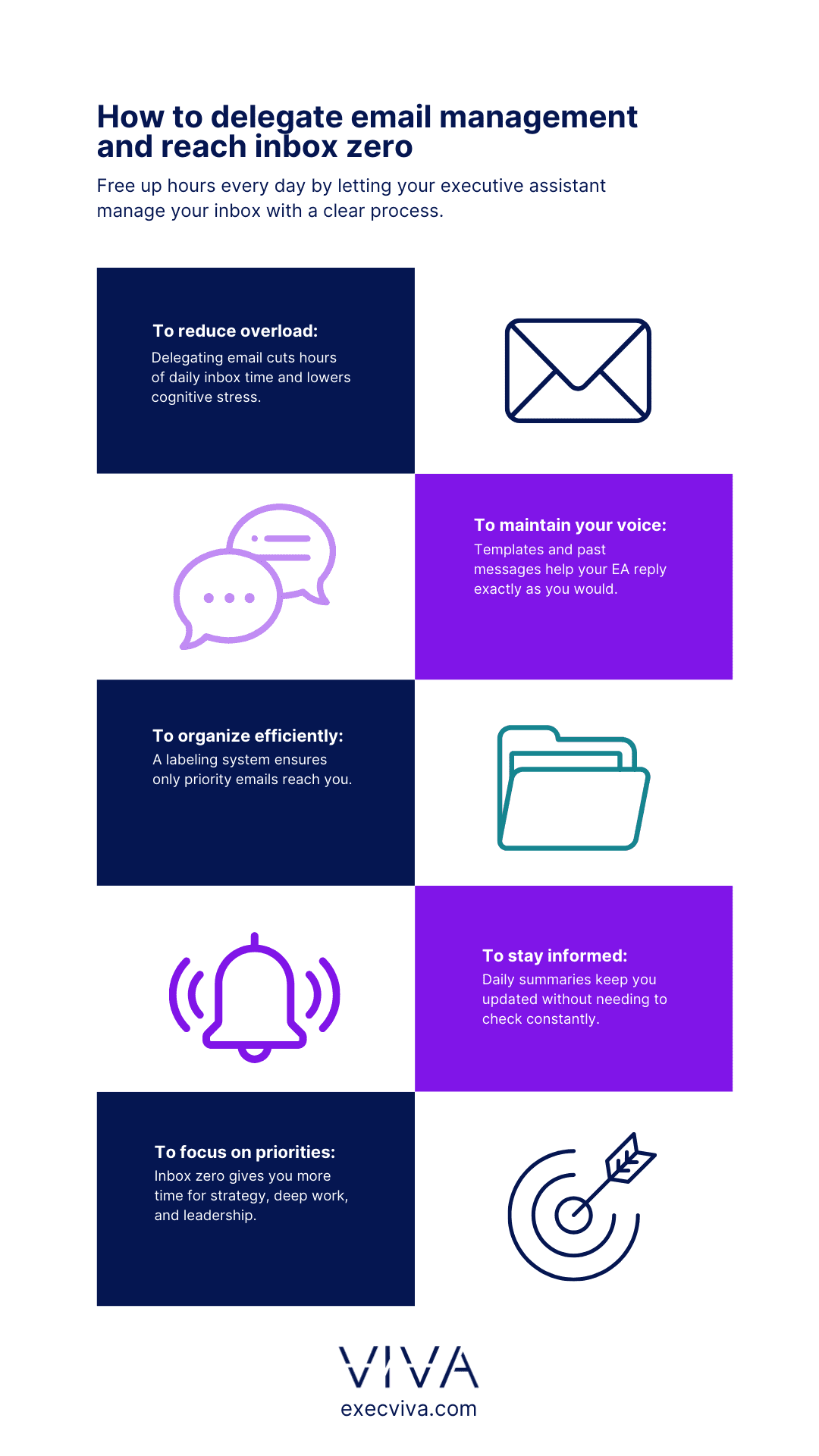
Granting access to your email can make you feel uneasy, but if you put a rigorous process in place, you will quickly find that the benefits of doing so outweigh the initial hesitations. By following these 5 tips, you’ll find yourself much more at ease with the idea of letting go of control, and your EA will help you reach inbox zero every day.
Share your operating manual with your EA and let them shadow you
The success of an executive <> EA relationship depends on many factors, one of which is how open you are with them. Create an operating manual: a detailed document that outlines how you prefer to work, make decisions, and communicate. It serves as a guide for others—such as executive assistants, team members, or other stakeholders—who need to interact with or support you.
Share your operating manual with your executive assistant and include as much information as you can. Make sure you include your communication style, work preferences, and travel details, for starters.
After you’ve done that, allow your executive assistant to shadow you for a while, so they can understand how you conduct yourself and how you address others. The goal is for your EA to understand and be able to embody your tone and voice, conveying messages in a way that is reflective of them.
Have your EA create templates based on past email communications
We all have unique ways of saying things, and some words or expressions simply don’t sound like you. In order for your executive assistant to really grasp the exact tone of voice you would use when addressing a stakeholder or a vendor, you need to let them take a closer look at how you speak. The fastest way? Ask them to go down the rabbit hole of past emails or leverage AI to do so: take 10–20 non-confidential emails and use ChatGPT to create templates for common responses, as well as identify frequently used words.
As soon as they do that, they will notice you never use the word “clients”, but “customers”; you don’t talk about yourself as an “entrepreneur”, but as a “founder.” This is the level of specificity you want them to acquire. Knowing your word preferences and the terms you use will help your EA speak in your voice every time, and make any email sound exactly as if you wrote it yourself.

Ask your EA to create a labeling system for you
Reaching inbox zero sounds like an unattainable goal, but all of our executive assistants have made it happen for the executives they support. One of our EAs managed to classify over 27,000 emails her CEO had sitting in his inbox.
This is how she did it.
They sat down together and established 8 categories for all messages. In your case, it can be 5 or 10, or whatever works for you. There is no magic number. If you want to draw inspiration from her example, these are the 8 categories she and her executive now use to reach inbox zero every day:
- Archive: For emails older than 2 months.
- Events: For external meetings, summits, and panels.
- Social: For offers, discounts, or coupons.
- Monday.com: To have visibility on work progress and completion.
- Subscriptions: From companies where her exec is a board member or advisor.
- Meetings: For accepted invitations to company meetings.
- Bamboo: To have visibility on vacation requests, promotions, or goals.
- Response needed: For emails that require immediate action from the executive, such as reply, create a doc, or make a call.
With this approach, instead of going through all the emails that are later distributed into those 8 buckets, the CEO only reviews the ones in the last folder: the ones that actually need his direct input and action. His executive assistant takes care of the rest.
Forget about your email without losing visibility
If you’re used to communicating via email, it’s hard to get out of the habit. It’s only normal to feel like you’re missing out on your own communication channels once you hand the responsibility of email management over to someone else.
To prevent that from happening, ask your executive assistant to send you a single consolidated Slack message to fill you in on everything that happened with your email that day. That will allow you to maintain visibility – without having to check your email.
Benefits of delegating your inbox
Delegating your inbox to your executive assistant means you have one less demanding task to perform every day, but there’s more to it than that. These are some of the biggest benefits of delegating email management:
- Reach inbox zero every day and stay on top of your work
- Less context switching and lost time
- Less cognitive overload
- More time to focus on deep work
- Less FOMO and knee-jerk reaction to check your email several times a day
- Faster response time because your EA is taking care of your inbox
Delegating might seem like too much work to even bother, but as you can see, you put in the work once and your executive assistant takes care of it from that moment on. If you want to start delegating email management and more, chat with our team. They can pair you up with the perfect executive assistant for your needs.