Executive Assistants
How my executive assistant helped me get to inbox zero and stay there
Feb 19, 2025
6 min read


The average full-time professional in the US receives 120 emails and spends 2.6 hours per day responding to emails. Executives spend even more time in their inbox. To save time and increase focus, executives can delegate inbox management to an executive assistant. But that requires a lot of trust. I personally struggled to let go. Here’s my journey.
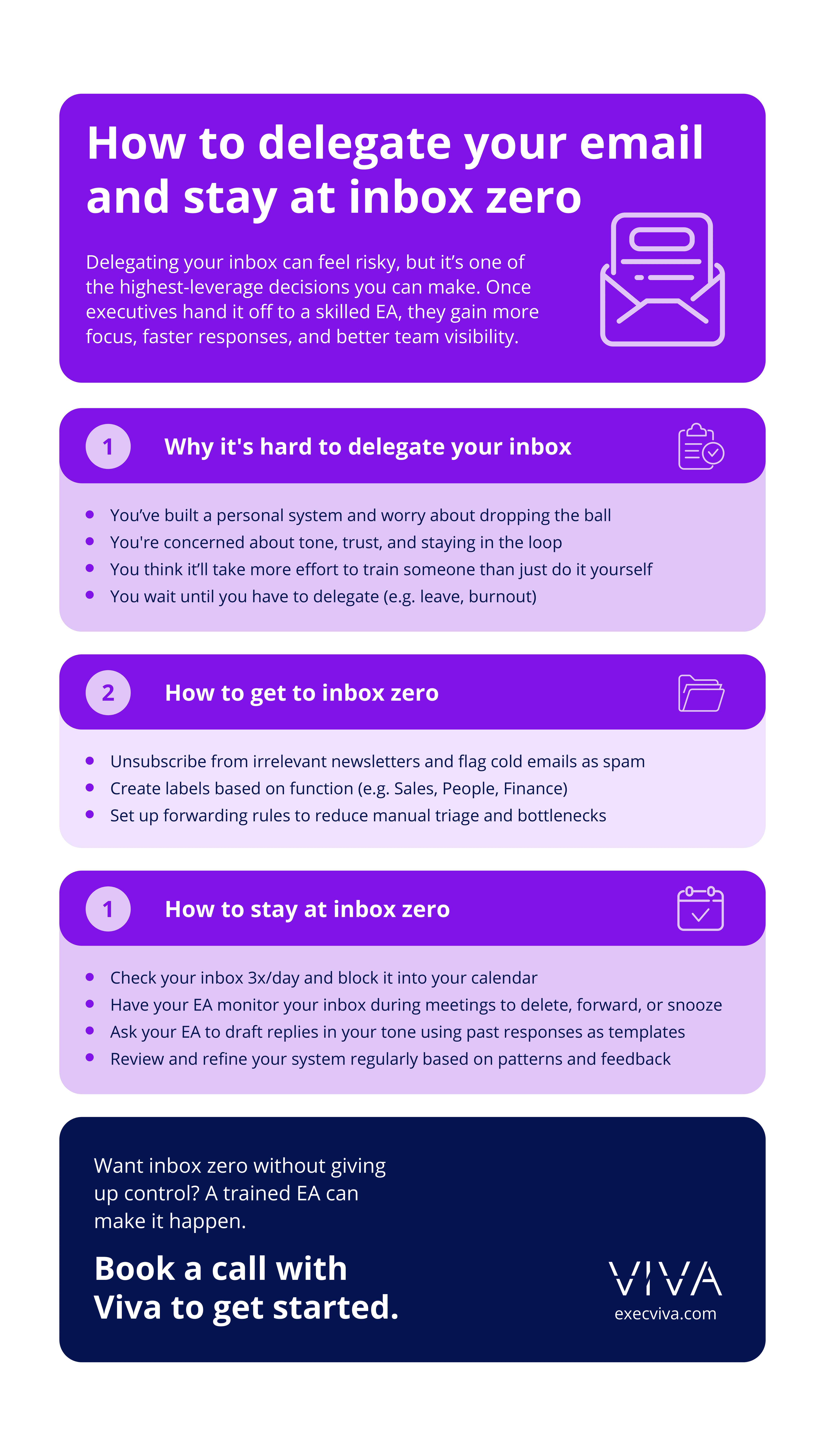
Table of contents
- Why did I struggle to delegate my inbox?
- How did I get to inbox zero?
- How did I stay at inbox zero?
Why did I struggle to delegate my inbox?
As a co-CEO at Viva, a big part of my focus is helping executives be more productive. I’ve hired over a hundred executive assistants, led delegation masterclasses for executives, and helped many executives delegate their inboxes. But I was always reluctant to delegate my own inbox to my EA.
Before I co-founded Viva, I spent my entire career without the support of an executive assistant. Over 50% of our customers are in the same boat when they’re being onboarded.
Like many executives, I created a system that was run entirely by me — scheduling meetings, creating presentations, planning team events, and managing email. Having control over these systems de-risked something going wrong – for example, sending an email in the wrong tone or missing an important email. That’s why I was so reluctant to give my EA direct access to my inbox.
Over time, my inbox accumulated more and more emails. I got used to waking up every morning to dozens of unread emails that piled onto an existing backlog of 50+ emails. And I’d spend every night trying to chip away at the backlog, which I’d then return to again the next morning.

Note: Whenever my inbox would exceed 50 emails, I’d lose focus in meetings and be distracted, trying to respond to emails during my meetings. 50 was my breaking point because it’s when my emails would no longer fit on one page in Gmail.
In addition to being less productive, I faced other issues. My response times were significantly delayed (anything over 24 hours is too long in my view), I sensed a weaker connection to my team, and I wasted time searching for information. I knew something had to change but I couldn’t figure out when and how.
I continued to operate this way for a year even after onboarding my EA, Michelle.
She built immense trust over that year but I still felt a bit reluctant and also didn’t want to disrupt all the other things I was delegating to her.
Until eventually, something happened that forced me to let go: My wife and I had a baby.
I decided to take 2 weeks off to focus fully on my family. It was the longest I’d be taking off since the inception of Viva. I knew I needed someone to take over my inbox during that time. That’s when Michelle took the reins.
When I returned, I felt the most relaxed I had ever been after any time off I had previously taken.
Why?
Michelle seamlessly managed my inbox the entire time I was offline and was able to respond, triage, and delete over 1,000 emails. I hadn’t even provided her any specific guidance on what to do with my inbox. She just figured it out.

*This is how my inbox looked after returning from the time off
That’s when I realized that I should have let go sooner. That doesn’t mean I would have handed over my inbox on day 1, but I could have done it much earlier.
I understand firsthand why executives don’t feel comfortable delegating inbox management to their EA. But I’ve learned that the benefits far outweigh the risks. If you’re on the fence, I recommend giving it a try for a period of time (e.g. 1 week when you’re out of office) and setting clear parameters based on your comfort level.
How did I get to inbox zero?
When I returned from my time off, I discussed my inbox challenges with my executive assistant, and we aligned on an initial objective: to optimize my inbox. She started by implementing three key improvements:
1. Unsubscribing from newsletters and marking unknown senders as spam
The more senior you are in a company, the more likely you are to get targeted with cold emails. Before you know it, dozens of emails make it to your inbox every day. And if you add the many newsletters you’ve signed up for that you don’t even read, you get a completely cluttered inbox full of things that are a distraction.
That’s why this was the first step: Get rid of the irrelevant emails. Here’s what my EA did:
- Unsubscribed from promotional emails (e.g. weekly emails from an airline)
- Opted out of cold emails from vendors for products we weren’t actively considering
- Marked cold emails as spam if they didn’t contain an unsubscribe link and blocked the sender
2. Creating labels and folders
I liked the idea of moving my emails to specific labels instead of just archiving them. When I started delegating my inbox, I was already using labels and wanted to keep them similar.
Michelle and I discussed two main options:
- Function (e.g. Finance, People, Sales)
- Status (e.g. Respond, Waiting for Response, Schedule, Visibility)
We decided to set up labels based on function since I was using a version of this structure and preferred setting up my main inbox by status while using labels to archive emails for future reference. I appreciated that my EA could help me maintain what was working while changing everything else.
After aligning on the structure, Michelle set up the labels and started categorizing my emails based on what she thought would work best. We then reviewed her categorizations for a few days until we had confidence that she could run on her own.
These are some of the categories we landed on for the labels. We also created sub-labels.

3. Setting up email forwarding rules
There are many emails that go to my inbox and end up making me the bottleneck. I then have to either respond or forward the email to someone else. Email forwarding became a game changer for this.
Michelle identified emails that could be handled by someone else and set up email forwarding rules for them. Here are some examples:
- Receipts and invoices from all vendors are forwarded to QuickBooks so that I don’t have to manually forward them
- Payments from customers are forwarded to our finance team and the Customer Success Manager for that account
- Contract signature notifications from PandaDoc are forwarded to our finance team and Customer Success team so that they can start onboarding
- Requests with specific words related to our policies are forwarded to our People team
- Travel booking confirmations are forwarded to Michelle so that she has them in her inbox as well
 At last, I had made it to the promised land: inbox zero. Now for the real fun: staying there.
How did I stay at inbox zero?
To my surprise, once my inbox was optimized and I finally hit inbox zero, I became even more distracted. I was constantly checking it. I wanted to clear every email that landed in my inbox right away so that it’d stay at zero.
My EA helped (actually, more like forced) me to check my inbox only 3x per day by reorganizing my calendar.
- Before my 2-hour meeting block in the morning
- After my morning meeting block
- After my 2-hour meeting block in the afternoon
She also actively and consistently monitors my inbox at specific times (e.g., when I’m in meetings) to draft responses and send out replies, set up more rules, and uses email snoozing to keep my inbox in order.
Through this, I realized that inbox zero is a constant journey, not a one-time destination. The real impact comes from having a long-term system in place built on daily maintenance.
Here’s how my EA keeps things running smoothly every day:
1. Triage emails while I’m in meetings
I used to go from one meeting to the next, dreading the moment I’d have to open my inbox—knowing I’d be greeted by dozens of unread emails. But now, my EA stays on top of my inbox while I’m in meetings. This way, when I finish meetings, only the most important emails are waiting for me.
My EA scans my inbox in real time and categorizes emails into three actions:
- Delete: Spam, automated notifications, and irrelevant messages
- Forward: Assign to a team member or flag for later review. If it’s something recurring, she’ll set up an email forwarding rule so that future emails can be automatically handled the same way
- Snooze: Mark for my attention during my next email slot
2. Reply to routine emails on my behalf
One of the main reasons I hesitated to delegate inbox management was because I wanted to maintain a personalized connection with my team. For example, I didn’t want my EA sending birthday messages on my behalf. That’s why we agreed that I would personally handle emails from and to my direct reports while she could draft other types of emails such as:
- Questions from the broader team
- Scheduling requests
- Vendor requests
3. Draft responses for complex emails
Executive assistants have an incredible ability to get to know you so well that they start thinking and even sounding like you. While it might feel daunting at first, allowing your EA to draft complex emails on your behalf can be a huge time saver. A great way to help them master your communication style is by having them review your past emails to see how you interact with different stakeholders. Here’s how I do it:
- When an email requires my input, my EA drafts a response based on previous conversations or templates.
- I simply wordsmith and hit “Send” instead of writing from scratch. My EA will also check these emails to see any edits I made so that she can learn from them. I’ll also call out when an email is written just like I would have (or even better) and when an email misses the mark.
Over time, we referred to this system in many different ways: inbox sweep, inbox scan, and inbox reset. Whatever you decide to call it, it’s a powerful approach.
 In summary, inbox zero isn’t just about organizing email — it’s about reclaiming your time and focus. My EA helped me go from inbox chaos to inbox zero, and an executive assistant can do the same for you. If you’re ready to take the plunge, book a call today to find out how Viva can help.