Productivity
How to delegate Slack to your virtual executive assistant
Mar 21, 2025
7 min read


If you’ve been searching “how to delegate Slack tasks to your virtual executive assistant” without much success, you’re not alone. There’s not a lot of solid guidance on this topic. That’s why we’re excited to share a workflow that allows you to delegate Slack using tools you probably have already: Zapier and ChatGPT.
But first: Let’s talk about how and why you use Slack. In our view, Slack should be reserved for quick, real-time communication. Anything that takes more than two minutes to handle, like reviewing approvals, vendor follow-up, or managing reminders, should be relegated to email. Here’s how you can make that happen.
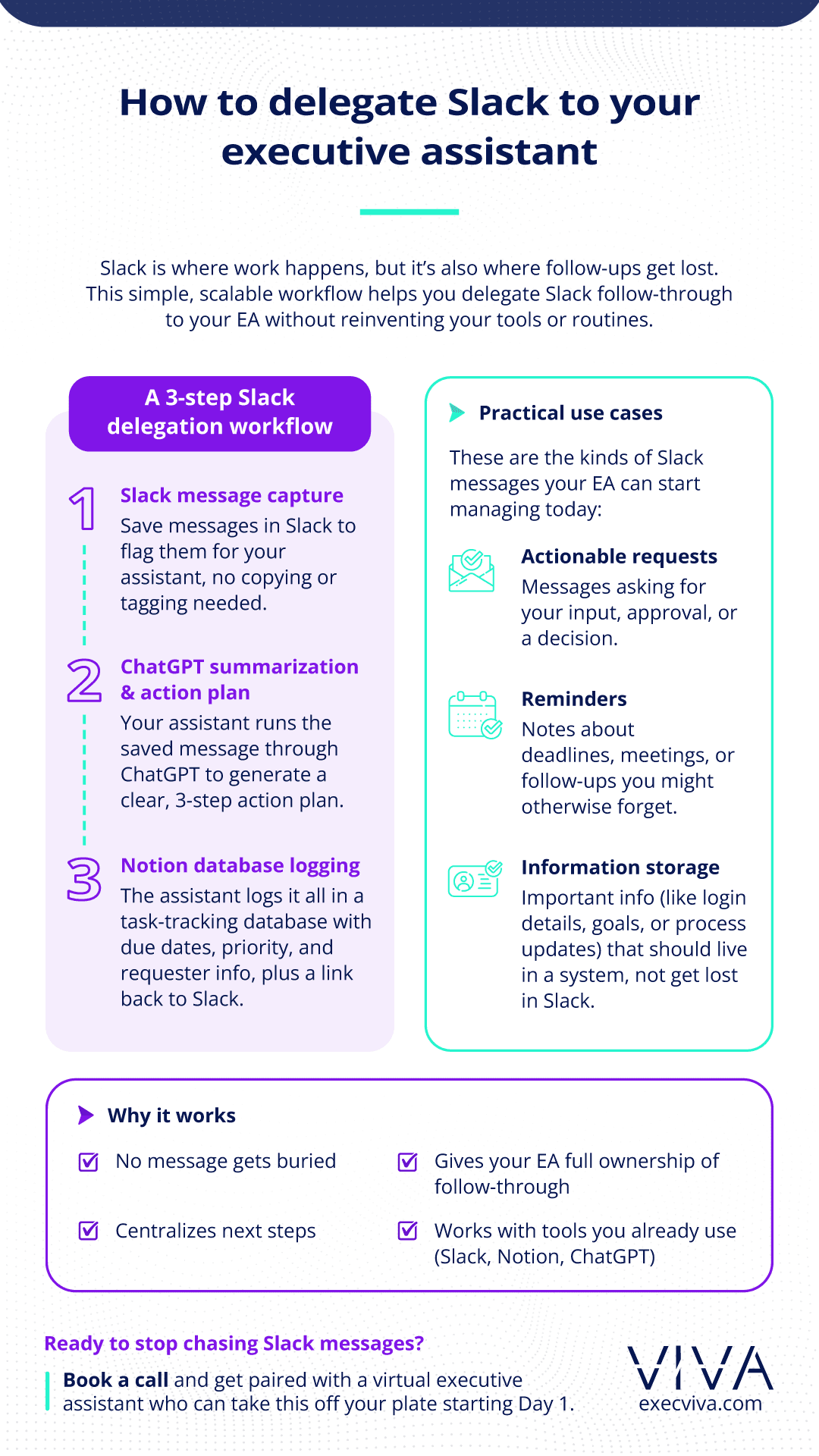
Table of contents:
- Three steps to create a flawless workflow
- Step-by-step workflow to delegate Slack to your virtual executive assistant
- Why is this workflow effective
- Practical use cases
1. Three steps to create a flawless workflow
We asked our executive assistants to create a simple yet effective workflow that turns Slack messages into actionable tasks. Here’s how it works: Whenever you save a message in Slack, the automation triggers a series of steps that leverage ChatGPT and Notion to keep your workspace organized.
Step 1: Slack message capture
The workflow starts when you save a message in Slack. Saving the message acts as the trigger, signaling that the content requires follow-up or further attention. This simple action eliminates the need to copy-paste text or manually transfer information elsewhere.

Step 2: ChatGPT summarization and action plan
Once the message is saved, the automation sends the content to ChatGPT, which analyzes the message and generates a clear, concise summary. ChatGPT also creates a 3-point (or more) action plan with suggested next steps. These steps might include: reviewing a document, following up with a colleague, or scheduling a meeting. The goal is to simplify decision-making and ensure tasks are actionable.
Step 3: Notion database logging
The final step sends the original Slack message, ChatGPT’s summary, and the action plan directly into a designated Notion database. This database acts as a centralized hub for all saved Slack messages, giving you and your executive assistant a clear view of what needs to be addressed. Each entry can include additional fields for due dates, task owners, or status updates, making it easier to track progress and maintain accountability.

2. Step-by-step workflow to delegate Slack to your virtual executive assistant
The following guide will walk you through how to set up this system step-by-step. We recommend you delegate steps 1 to 4 entirely to your virtual executive assistant. After step 5, it gets tricky since you need to access your own Slack account. You can also hop on a video call with your EA so they can guide you through the process. Let your comfort level guide your approach.

- Create a Table View – Database in Notion.
- For the Database Title use something you can easily identify as the name for your to-do list, which can be the same as your Notion page. You may then hide the database title for a cleaner look.
- Once the Table View is created, the column “Aa Name” should appear. Leave it as is and make sure to move it to the very end of your Table View.
- Create the following columns and modify each type as listed:
- Description – property type: text
- Steps to take – property type: text
- Created time – property type: created time
- Respond by – property type: formula – edit formula: now().dateAdd(2, “hour”)
- The (2,“hour”) will determine the due date for the task starting from when the Slack message was saved. In this example, the due date will be 2 hours later. Feel free to modify the quantity or change it to days, weeks, etc.
- Status – property type: status
- This step is not automated; you should manually determine the progress on each task.
- Priority level – property type: select
- This step is not automated; you should manually determine each task’s priority level (high, medium, low).
- Requested by – property type: text
- Message Link – property type: Files & media
- Remember that the last column should be the Aa Name column that’s created by default with the Table View – Database.
- Before this next step, make sure no changes have to be made (as Zaps doesn’t always recognize changes) and complete the following:
- Go to connections
- Manage my connections
- Select Zapier
- You will find a 3 dotted menu in the Zapier box. Select Access selected pages.
- Select the Notion To-do list database you just created.
- Log in to Zapier
- Go to Zaps and create a new one, Include the following:
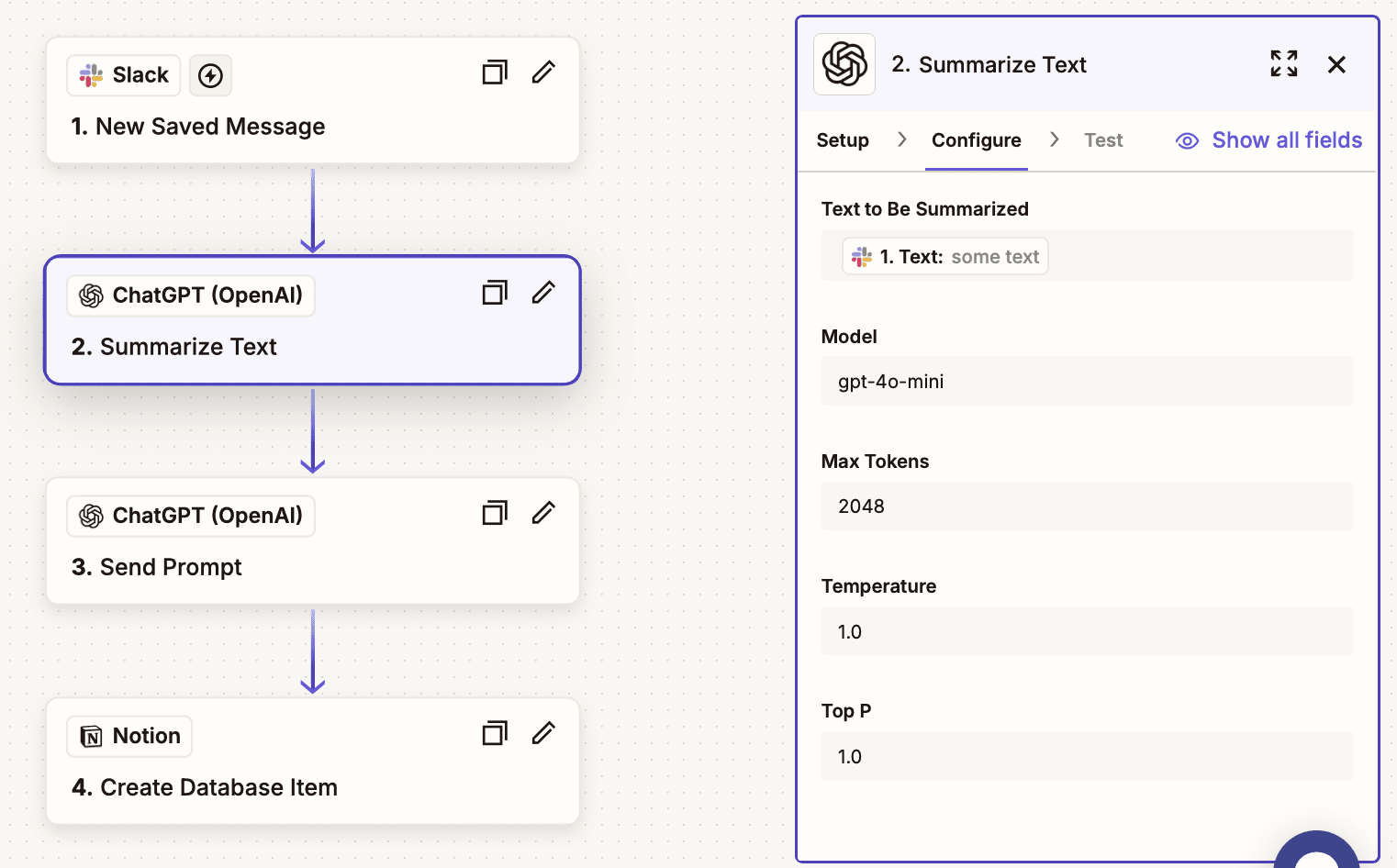
- In the first box, click on “Trigger” and select Slack.
- The setup menu should appear on the right side, and be filled in as listed (these are all options given by Zaps):
- Trigger event: New Saved Message
- Account: Sign in to your Slack account
- Click Continue and Test this step
- In the second box below, click on “Action” and select ChatGPT. You will have to set up access between these two apps. Zapier will provide instructions about how to do this.
- The setup menu should appear on the right side and be filled in as listed (these are all options given by Zaps):
- Action event: Summarize Text
- Account: Sign in to your ChatGPT account
- Click Continue to the Configuration tab and fill it in as listed (these are all options given by Zaps):
- Text to Be Summarized: Under the 1. New saved message in the Slack menu you should find 1. Text: some text
- Click Continue and Test this step
- Add a new box below and select ChatGPT again
- The setup menu should appear on the right side, and be filled in as listed (these are all options given by Zaps):
- Action event: Send prompt
- Account: Sign in to your ChatGPT account
- Click Continue to the Configuration tab and fill it in as listed (these are all options given by Zaps):
- In the “Prompt” box please write: Can you generate a 3-bullet action plan for the following: and add the 2. Summarized text: Some text option
- Click Continue and Test this step
- Add a new box below and select Notion
- The setup menu should appear on the right side, and be filled in as listed (these are all options given by Zaps)
- Action event: Create Database Item
- Account: Sign in to your Notion account
- Go back to Zapier, click Continue to the Configuration tab, and fill it in as listed (these are all options given by Zaps):
- Database: You should now have the option to select your Notion database page
- Name: 1. Text: some text
- Message Link: Select the Slack Permalink
- Priority Level: Leave blank
- Description: Select the ChatGPT 2. Summary
- Steps to take: Select the ChatGPT 3. Prompt
- Requested by: Select the Slack 1. User Real Name
- Status: Leave as is
- Content: Leave blank
- Content Format: Plain Text
- Click Continue and Test this step
- Once successfully tested, Publish
- You should now be able to save a text in Slack and after a few seconds have it listed in your Zapier To-do List with a list of steps to take to complete it.

3. Why is this workflow effective
- Improved organization: Important messages no longer get buried in Slack channels. Instead, they’re neatly stored in Notion with clear next steps.
- Time savings: You reduce the need for manual effort by automating message summarization and task creation.
- Enhanced delegation: Your executive assistant can easily manage these tasks, ensuring nothing slips through the cracks.
4. Practical use cases
- Actionable requests: Messages that ask for your input, approval, or review.
- Reminders: Notes about upcoming deadlines, meetings, or follow-ups.
- Information storage: Key details shared in Slack that need to be referenced later.
If you’re ready to delegate Slack but don’t have a team member to delegate it to, book a call today to see how a virtual executive assistant from Viva can help you stay organized.